Viewing & managing an asset
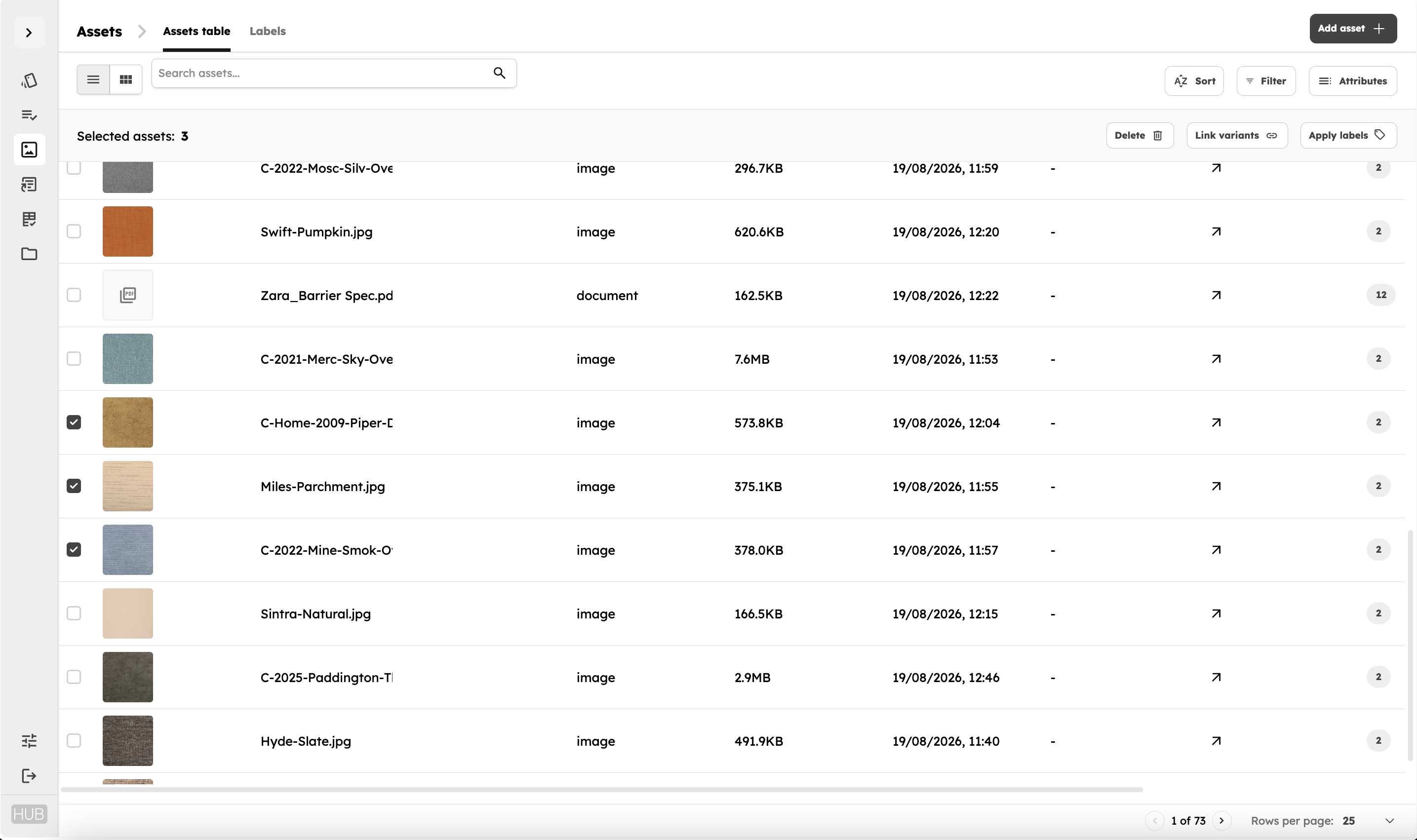
Each asset in Hub has its own Asset Details page, where you can review the file, manage its information and status, see which product variants it is connected to, and organise it using labels.
Opening an asset
From the Assets page, select an asset to open its Asset Details page.
The page is divided into three sections:
- Asset info - Review the asset and manage its core information.
- Associated variants - See which product variants are connected to the asset.
- Labels - View and manage the labels applied to the asset.
Asset info
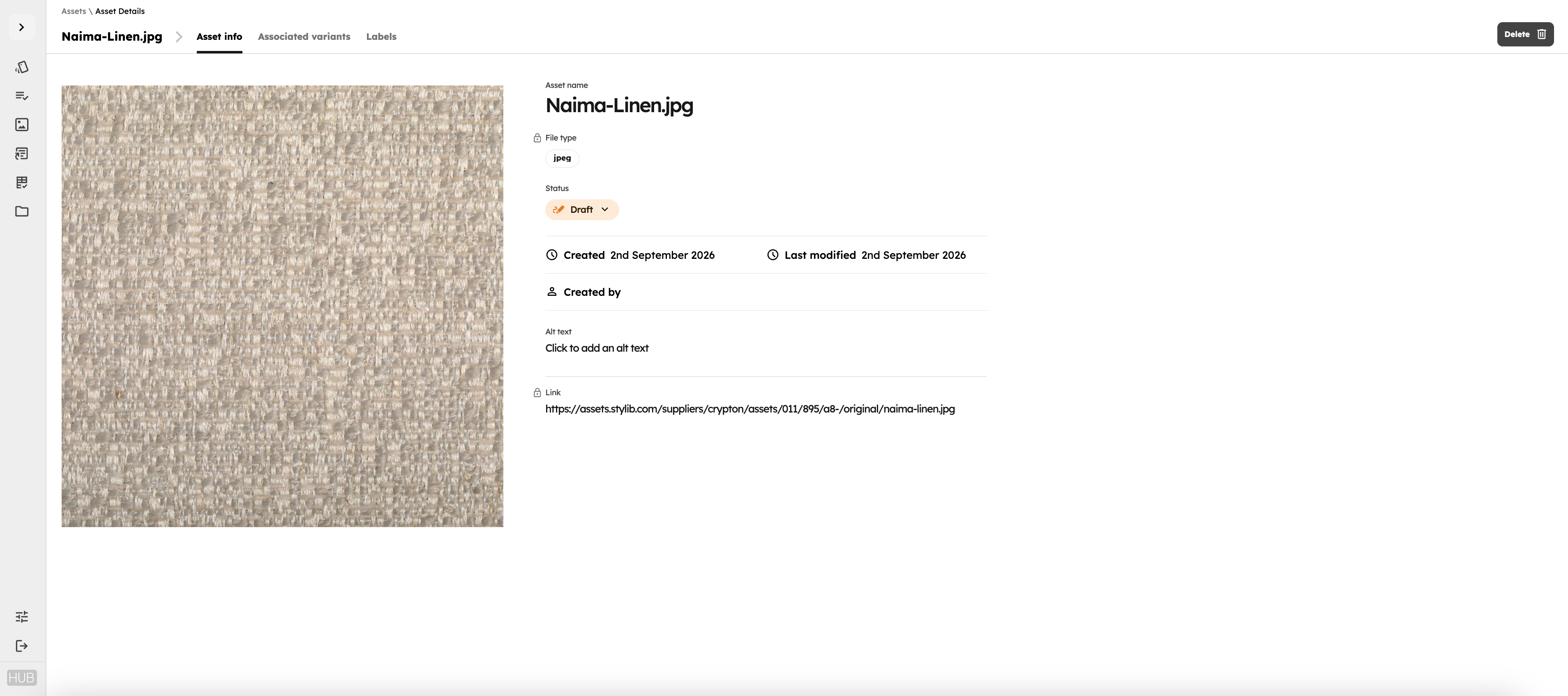
The Asset info tab displays a preview of the asset together with its key information.
Depending on the asset, this can include:
- Asset name
- File type
- Status
- Created date
- Last modified date
- Created by
- Alt text
- Direct asset URL
Managing asset status
Assets can be assigned a status to reflect where they are in your workflow.
Available statuses are:
- Draft - The asset is still being prepared or reviewed.
- Pending approval - The asset is ready for review before being made live.
- Live - The asset is approved and available for active use.
- Archived - The asset is no longer actively used but is being retained in the library.
Select the current status to change it.
Using asset statuses can help teams distinguish between work in progress, approved files and assets that should no longer be used.
Editing alt text
For image assets, you can add or edit alt text directly from the Asset Details page.
Alt text provides a written description of an image and can be used when the asset is published on websites and other digital channels.
Asset URL
Each asset has its own direct URL.
The URL provides direct access to the hosted asset and can be copied when the file needs to be referenced or used outside Hub.
Deleting an asset
Assets can also be deleted from the Asset Details page.
Before deleting an asset, check whether it is connected to any product variants using the Associated variants tab.
Associated variants
Open the Associated variants tab to see which product variants are currently connected to the asset.
The table allows you to review the products using the asset and search through its existing associations.
Information displayed can include:
- Variant
- Product
- Material family
- Product status
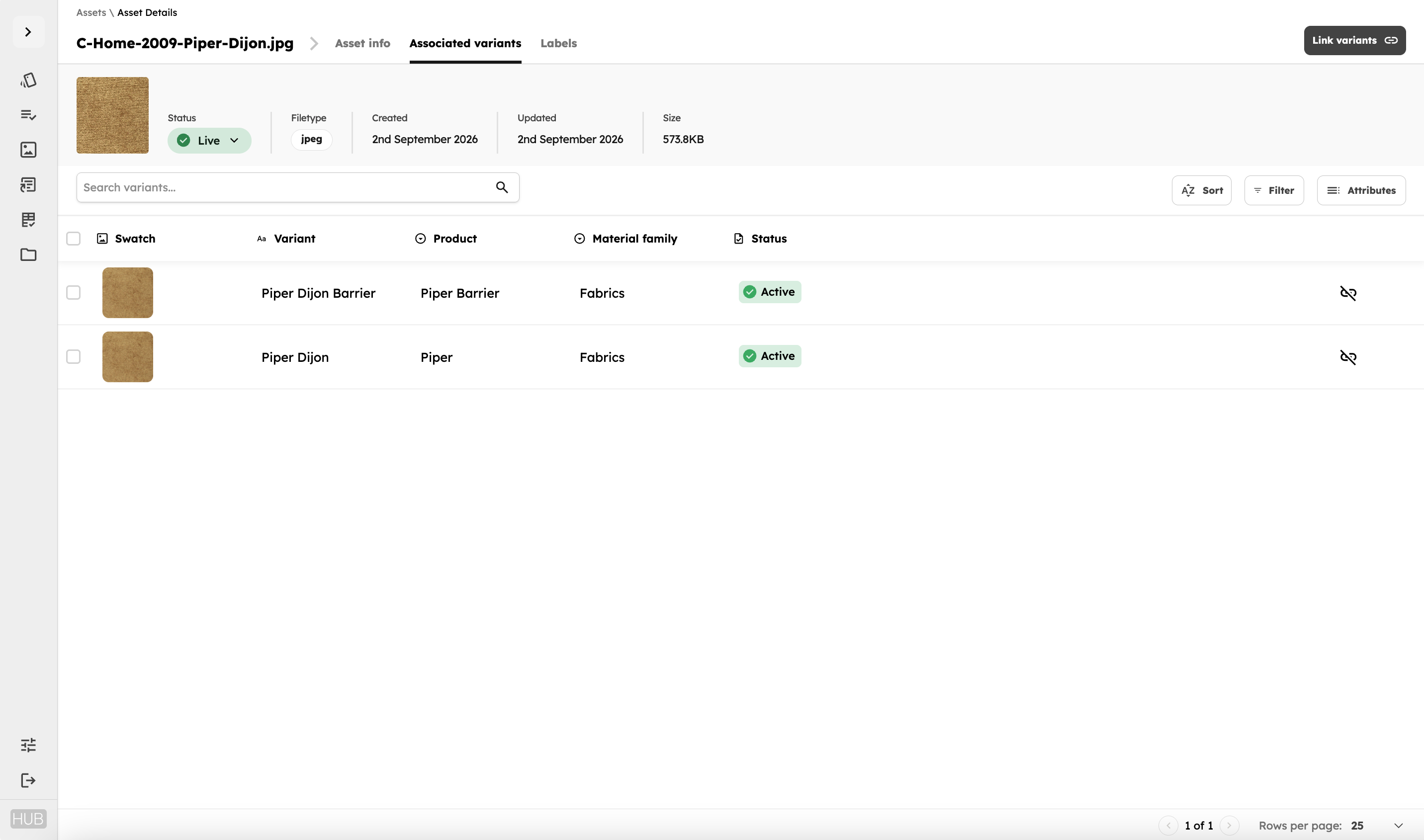
This is useful when determining where an asset is currently being used before replacing, updating or removing it.
To add or remove asset relationships, see Linking & unlinking assets.
Labels
Open the Labels tab to view and manage the labels assigned to an asset.
Labels make it easier to organise, classify and find assets across your library.
Available labels
Available labels are displayed on the left-hand side and organised into categories.
For example, a category such as Sustainability might contain labels including:
- LEED
- Recycled content
- EPD
Use the search field to find a specific label, or browse labels by category.
Select a label to apply it to the asset.
Applied labels
Labels currently assigned to the asset appear separately under Applied labels.
From here, you can:
- Review the labels currently assigned to the asset
- Remove individual labels
- Clear all applied labels
Labels can also be applied to multiple assets at once from the main Assets page. See Organising assets with labels for more information.
Other asset actions
Some common asset actions are also available directly from the main Assets page.
Open the actions menu beside an asset to:
- Apply labels
- Download the asset
- Delete the asset
For working with multiple assets, use the bulk selection controls on the Assets page.