Reviewing & finding assets
The Assets page gives you a complete view of the files stored in Hub and provides tools to help you quickly find the assets you need.
You can search, sort, filter and change how assets are displayed, making it easier to work with both small and large asset libraries.
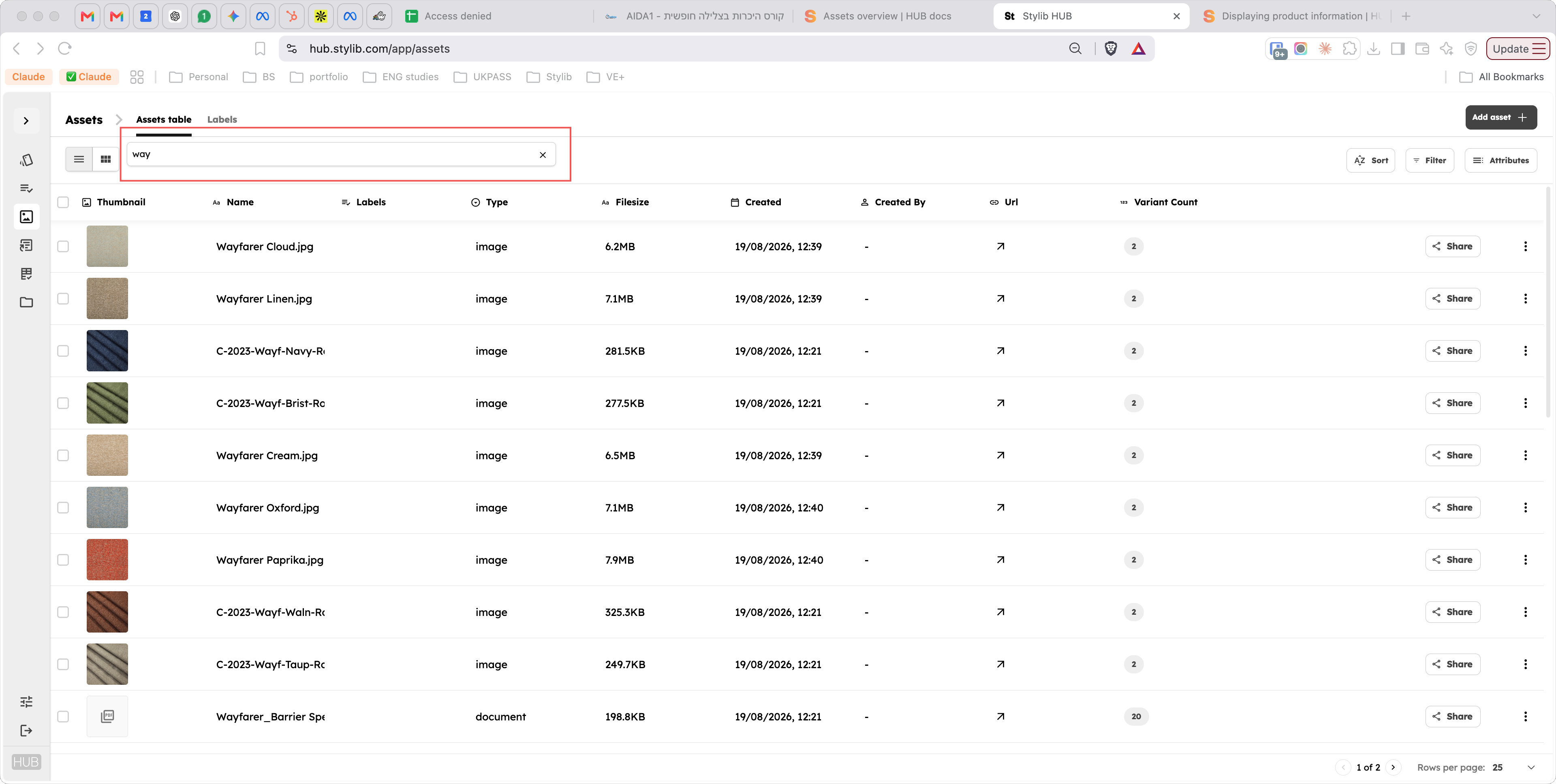
Searching for assets
Use the search bar to find assets by name or other searchable information available in the library.
Search is useful when you know part or all of the asset name and want to narrow the list quickly.
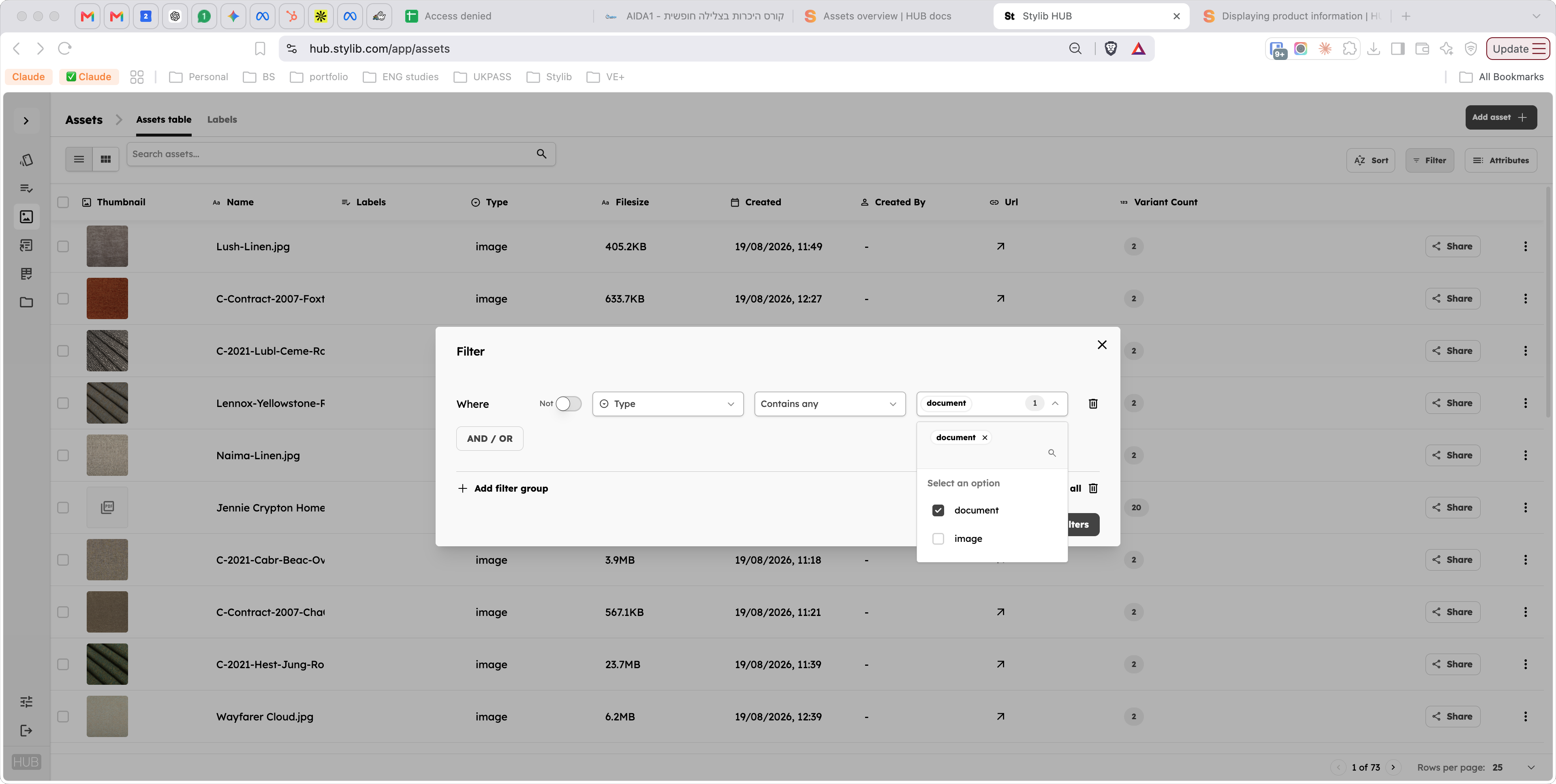
Filtering assets
Filters allow you to narrow the Asset Library based on specific characteristics.
Depending on your Hub configuration, filters can include information such as:
- Asset type
- File format
- Status
- Labels
- Created date
- Created by
You can combine filters to progressively narrow down a large collection of assets.
Sorting assets
Assets can be sorted to make it easier to review the library in a useful order.
For example, you may want to sort assets by:
- Name
- Created date
- Last modified date
- File size
Sorting is particularly useful when reviewing recently uploaded or updated files.
Changing the view
The Asset Library can be displayed in different views depending on how you prefer to work.
List view
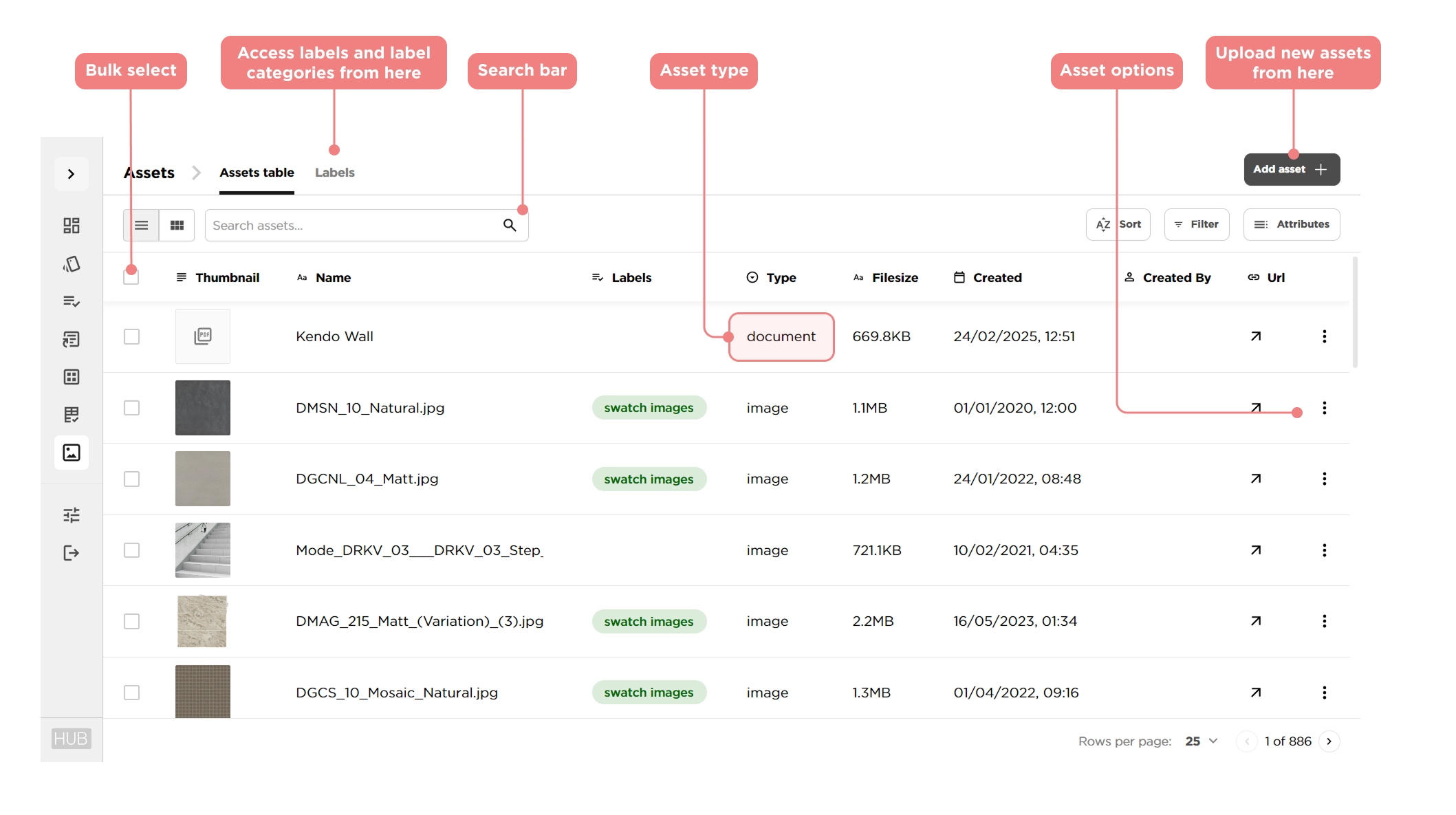
List view provides a more detailed overview of each asset and is useful when reviewing metadata or comparing multiple files.
Information displayed can include:
- Thumbnail
- Asset name
- Labels
- File type
- File size
- Created date
- Created by
- Direct asset URL
Thumbnail view
Thumbnail view places greater emphasis on the visual preview of each asset and is particularly useful when working with product imagery, marketing images and other visual content.
Switch between views at any time without changing the assets in your library.
Reviewing asset information
Each row or thumbnail gives you access to key information about an asset before you open it.
For more detailed information, select the asset to open its Asset Details page.
From there, you can review its metadata, status, associated product variants and labels.
See Viewing & managing an asset for more information.
Quick asset actions
Common actions are available directly from the Assets page, so you do not always need to open the individual asset.
Depending on your permissions, these can include:
- Apply labels
- Download
- Delete
Working with multiple assets
You can select multiple assets to perform actions across several files at once.
This is useful when managing larger batches of assets, for example when applying the same labels to a group of files.
For more information on organising assets in bulk, see Organising assets with labels.