Organising assets with labels
Labels help you organise and classify assets in Hub, making larger asset libraries easier to manage and search.
Labels can be applied to individual assets or to multiple assets at once, and are organised into categories to keep the label library structured.
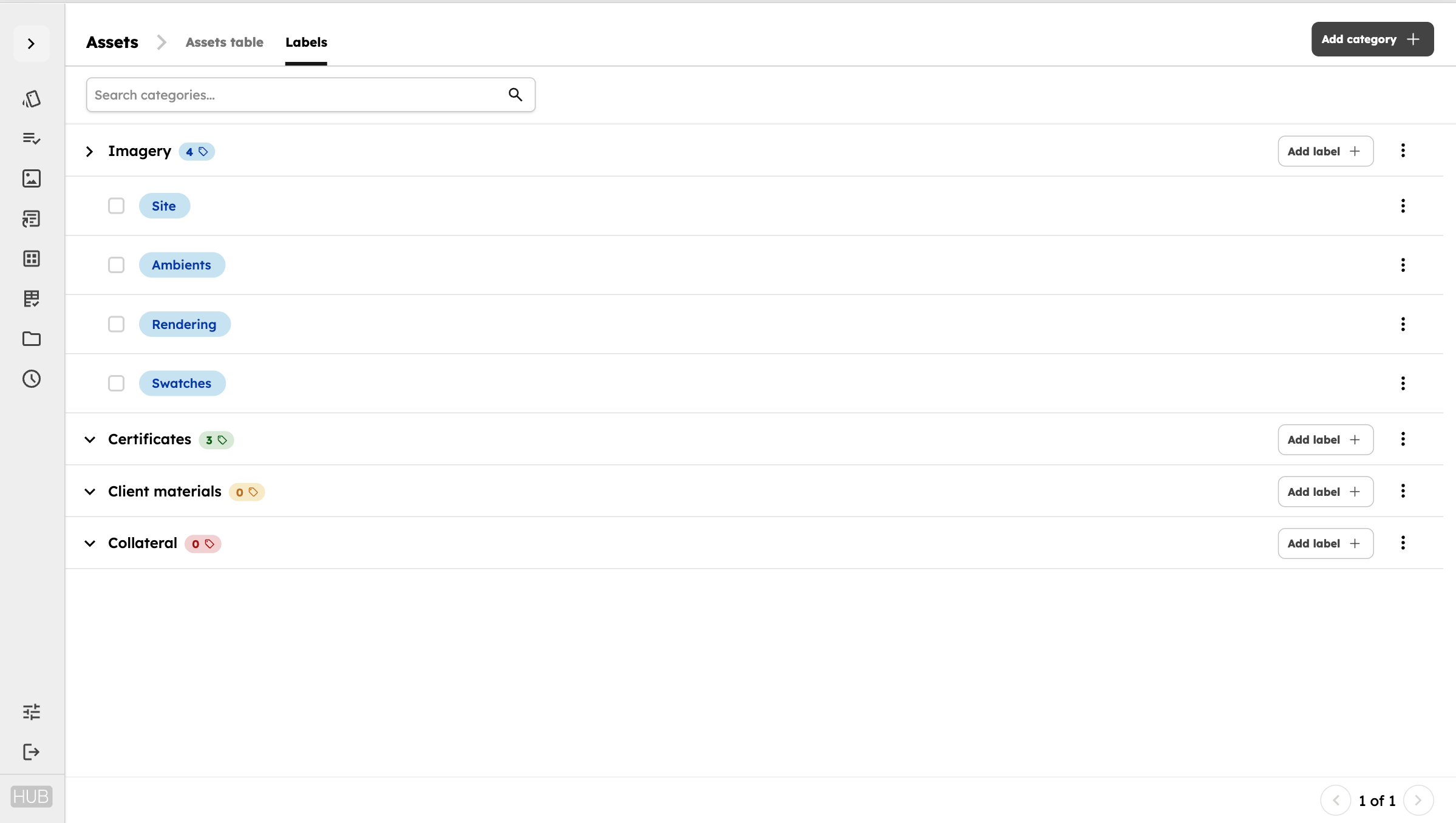
Labels and categories
A label describes a specific characteristic or classification applied to an asset.
A category groups related labels together.
For example:
- Sustainability
- EPD
- Recycled content
- LEED
- Asset type
- Product image
- Technical document
- Certificate
The categories and labels available in your Hub will depend on how your Asset Library has been configured.
Applying labels to an asset
Open an asset and select the Labels tab.
Available labels are shown separately from the labels already applied to the asset.
You can browse labels by category or use the search field to find a specific label.
Select a label to apply it to the asset.
Once applied, the label will appear under Applied labels.
Removing labels
From the Labels tab, you can remove labels that are no longer relevant.
You can:
- Remove an individual label
- Clear all labels currently applied to the asset
Removing a label does not delete the label itself. It only removes its association with that asset.
Applying labels to multiple assets
Labels can also be applied to several assets at the same time.
From the main Assets page:
- Select the assets you want to update.
- Open the bulk actions menu.
- Select Apply labels.
- Choose the labels you want to apply.
Bulk labelling is useful when uploading or reviewing groups of related assets that share the same classification.
Creating and managing labels
Depending on your permissions, you can also create and manage the labels available in your Asset Library.
Labels should be organised within relevant categories so they remain easy to browse and use consistently across the organisation.
When creating labels, aim to use clear and consistent naming. Avoid creating multiple labels that represent the same information in slightly different ways.
Finding assets using labels
Labels can also be used to narrow the Asset Library when searching or filtering.
This allows you to quickly find groups of assets that share a particular characteristic, document type or use.
For more information about searching and filtering the library, see Reviewing & finding assets.