Linking & unlinking assets
Assets in Hub can be linked to one or more product variants.
These relationships allow the same file to be used across multiple products or variants without creating duplicate assets.
For example, a technical document may apply to an entire product range, while a product image may only be relevant to a single variant.
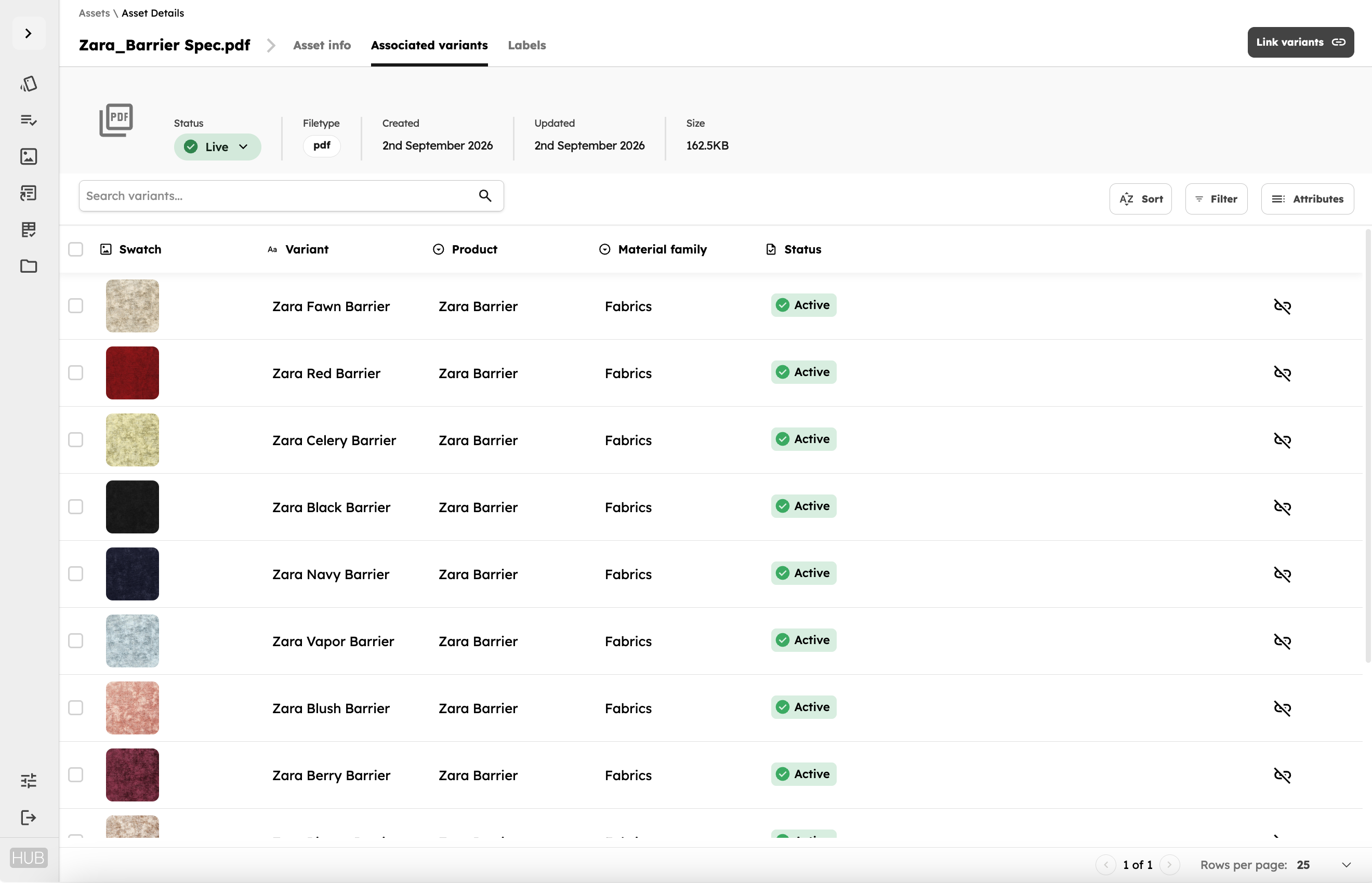
Linking variants from an asset
Open the asset you want to manage and go to the Associated variants tab.
From here, you can review the variants currently connected to the asset and add additional relationships.
Search for the relevant variant and select it to create the relationship.
Once linked, the variant will appear in the asset's Associated variants list.
Linking assets from a product variant
You can also manage asset relationships from the product or variant itself.
Open the relevant variant and navigate to its assets.
From here, you can select an existing asset from the Asset Library and link it to the variant.
This approach can be useful when you are working on a specific product and want to review all of its assets in one place.
Reviewing linked variants
From an asset's Associated variants tab, you can see all of the product variants currently using that asset.
The table can include information such as:
- Variant
- Product
- Material family
- Product status
Use the search field to find a specific association when an asset is connected to a large number of variants.
Unlinking an asset
Removing a relationship between an asset and a variant does not delete either the asset or the product.
It only removes the connection between them.
To unlink an asset, find the relevant association and select the option to remove it.
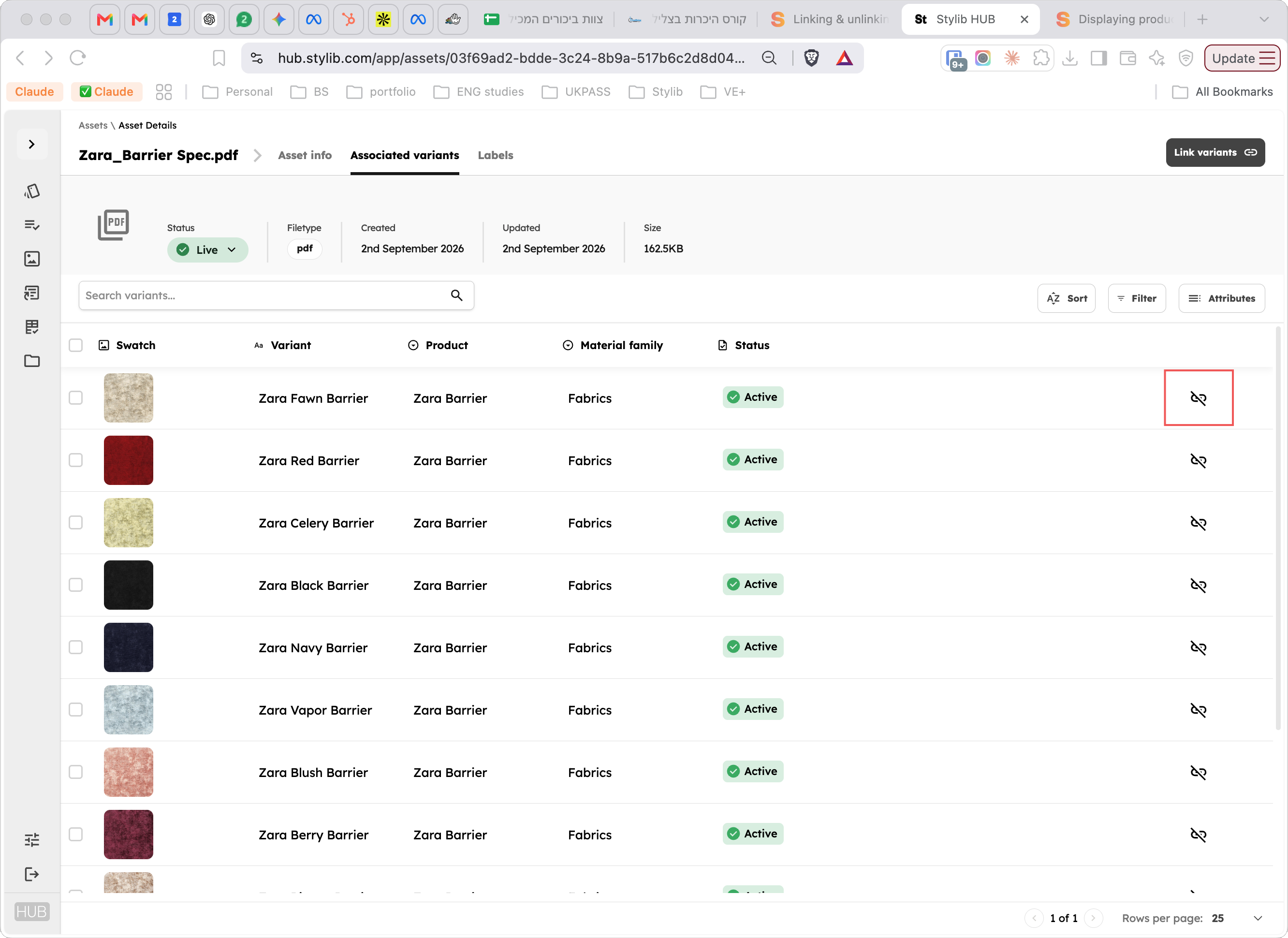
The asset will remain available in the Asset Library and can still be connected to other products or variants.
Deleting versus unlinking
Unlinking removes the relationship between an asset and a product variant.
Deleting removes the asset itself from the Asset Library.
If an asset is used by multiple variants, review its Associated variants before deleting it to make sure it is not still required elsewhere.