Browsing attributes
The Attributes page gives you an overview of all attributes available in Hub.
From here, you can search, sort and filter attributes, choose which information is displayed in the table, and open an individual attribute to review or manage it.
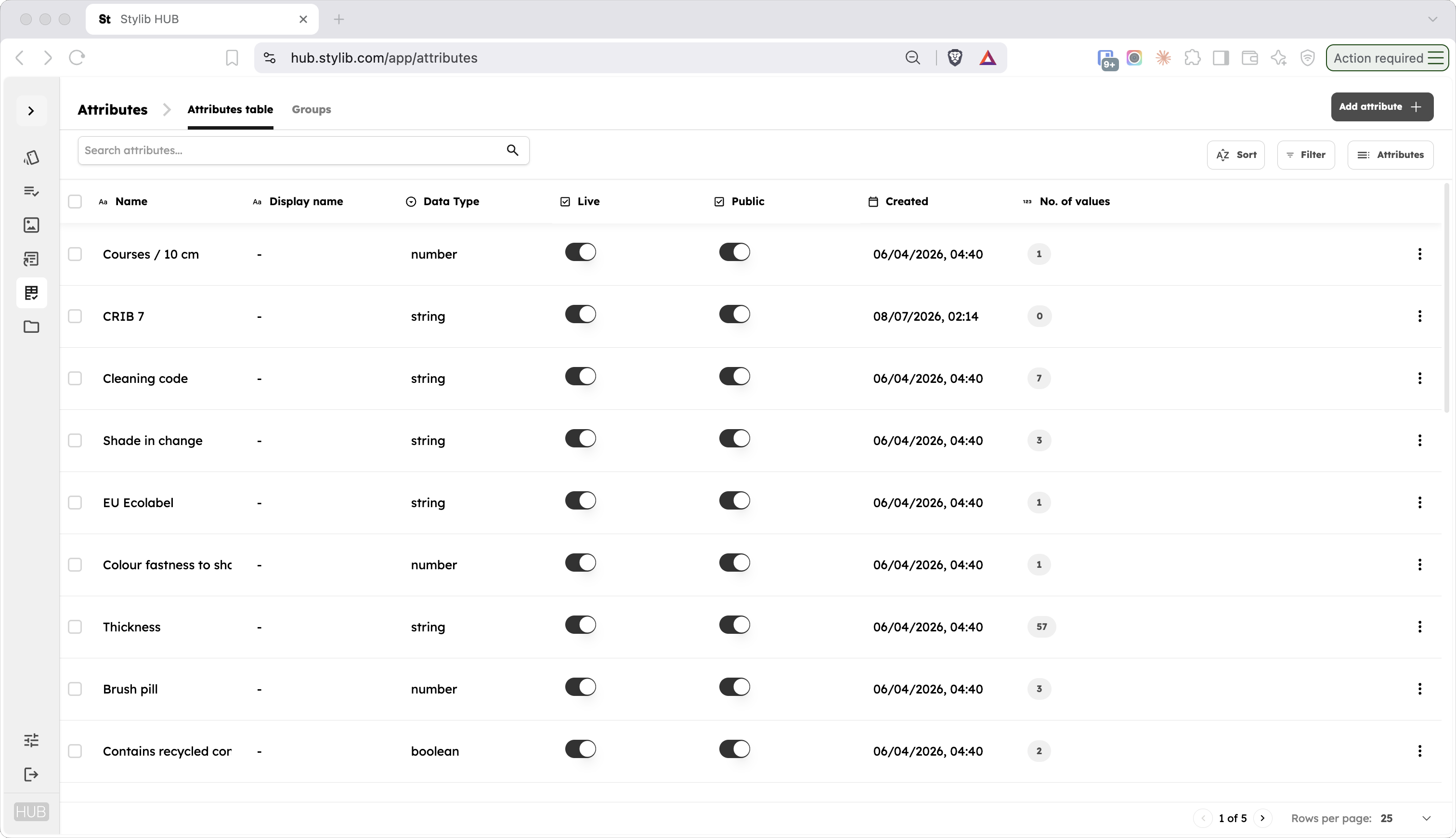
Searching attributes
Use the search field to quickly find an attribute by name.
This is useful when you know which attribute you want to review and do not need to apply more detailed filters.
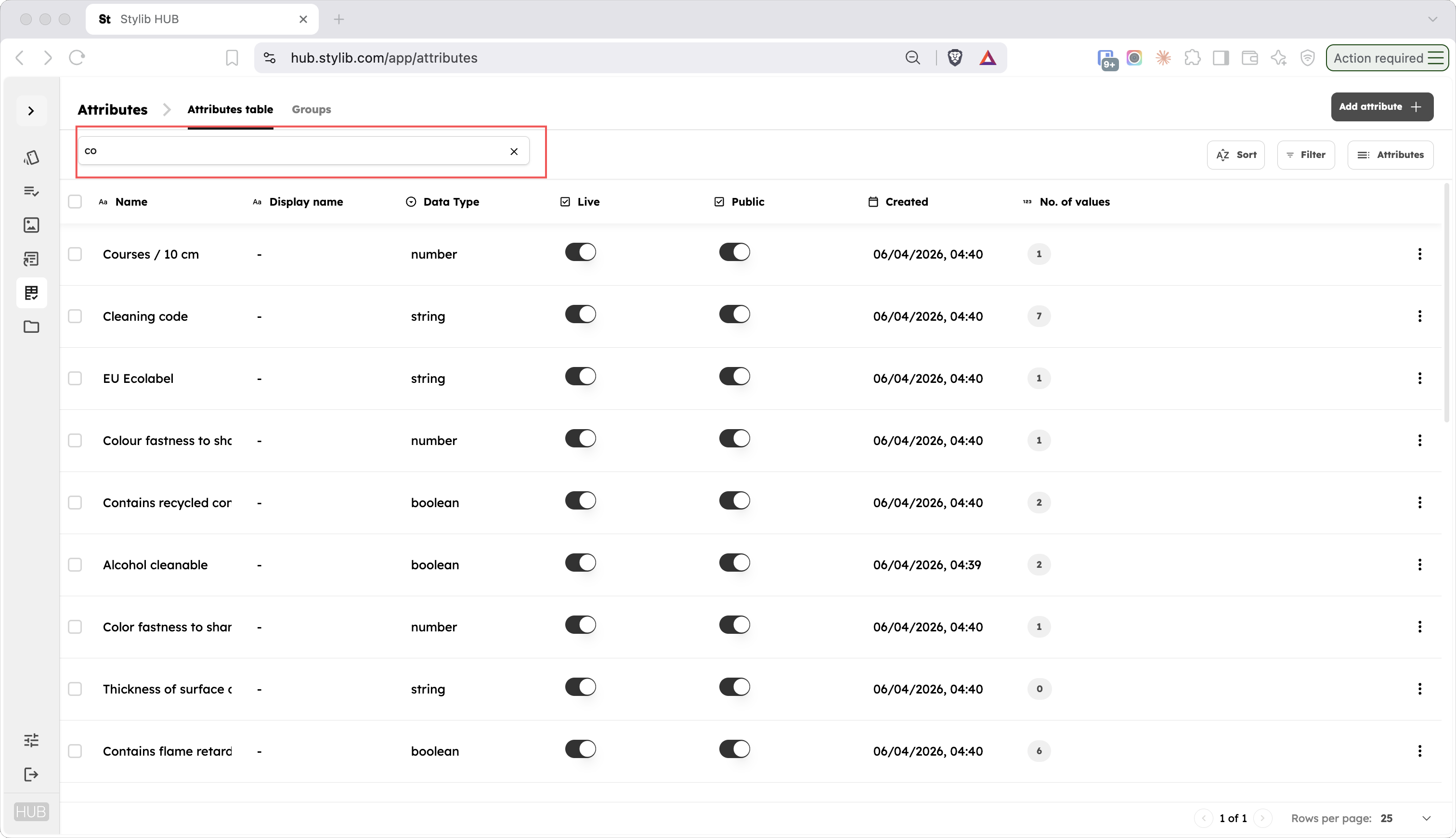
Sorting attributes
Use Sort to change the order in which attributes appear.
Select the attribute property you want to sort by and choose the sort direction.
For example, you can sort attributes by their name, data type, Live or Public status, or number of associated values.
You can add more than one sorting rule when you need more control over how the table is ordered.
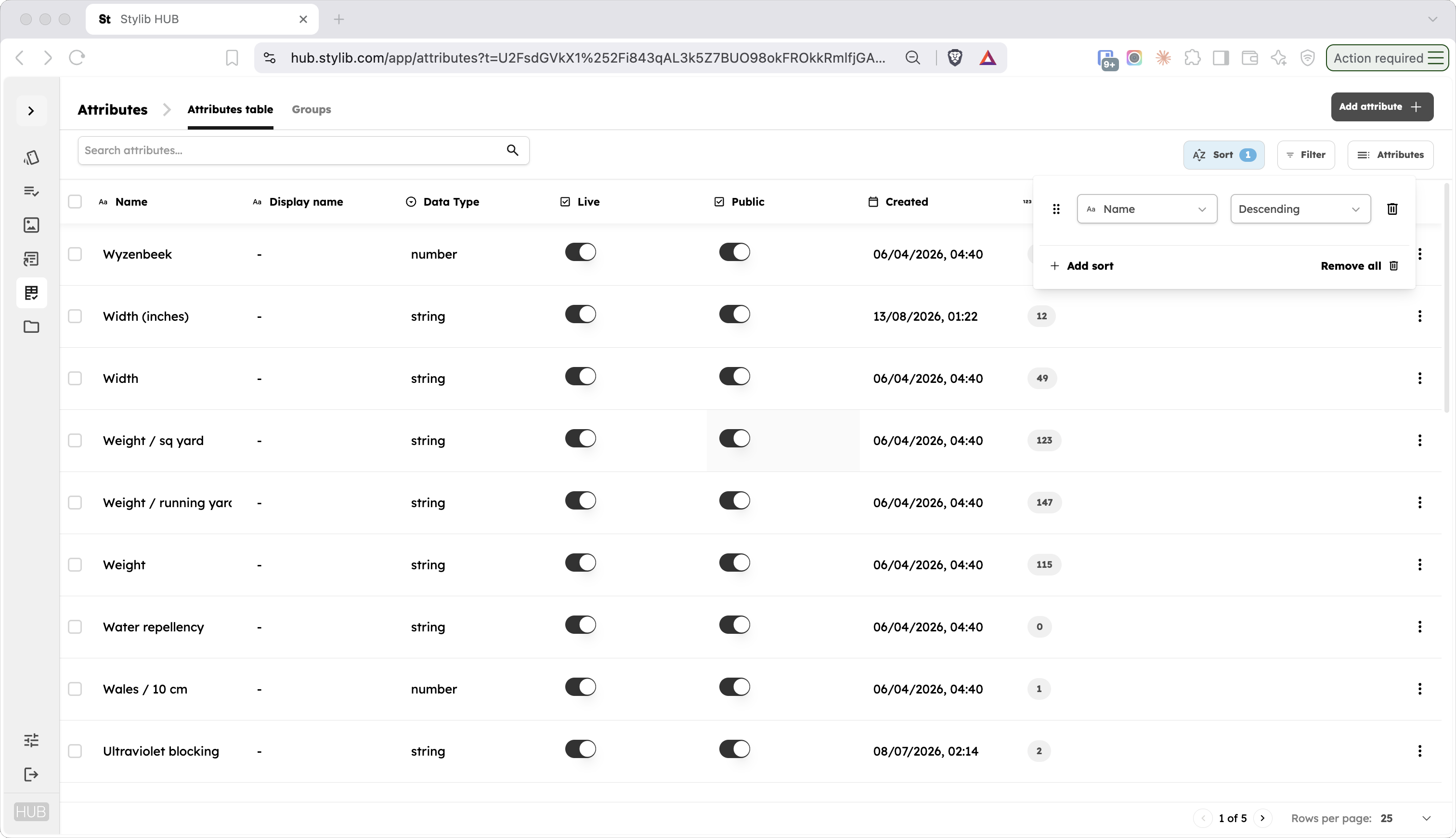
Filtering attributes
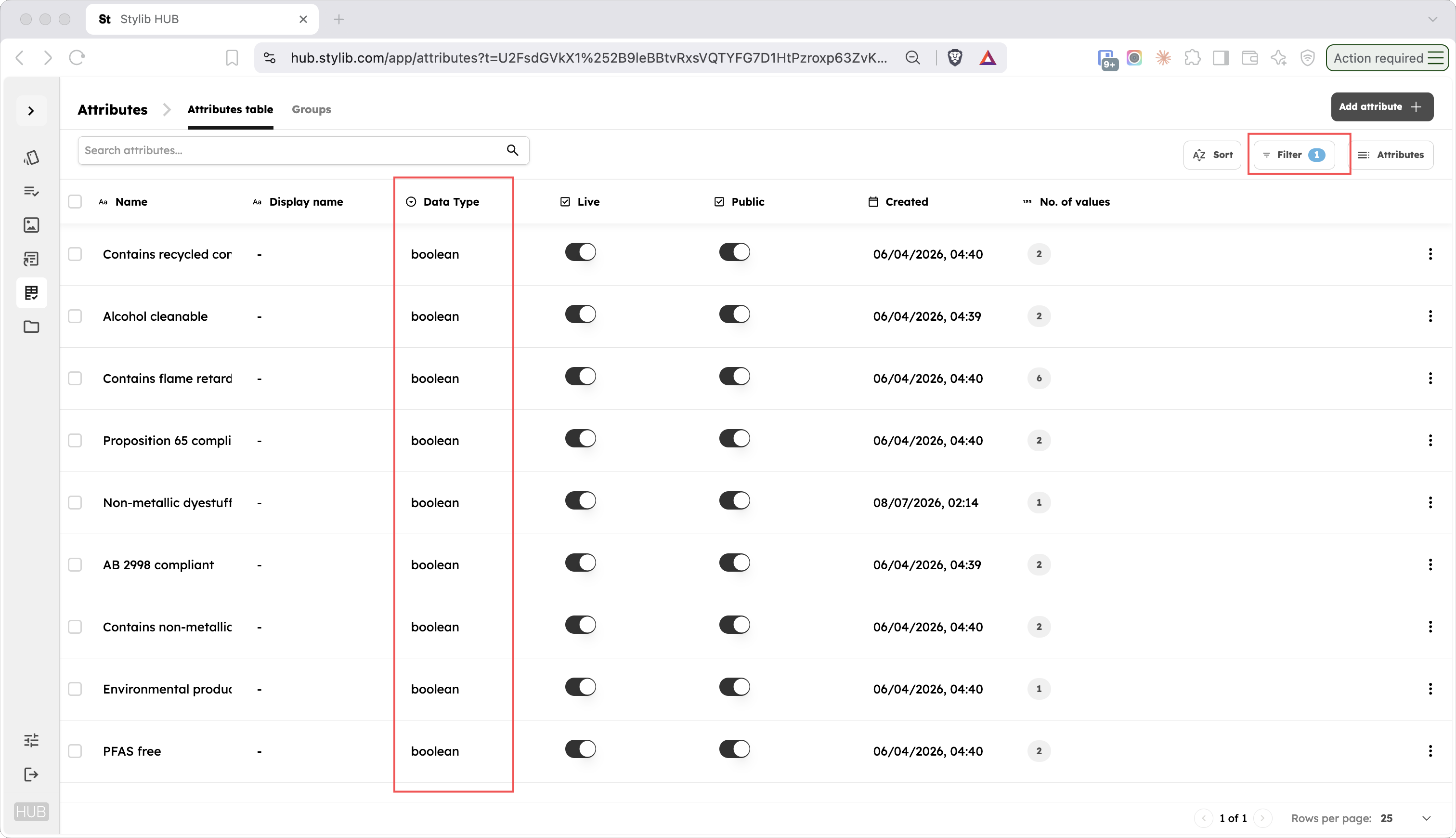
Use Filter to show only attributes that match particular conditions.
To create a filter:
-
Click ‘Filter’
-
Select the attribute property you want to filter.
-
Select the filter condition.
-
Enter or select the value you want to filter by.
-
Click Apply filters
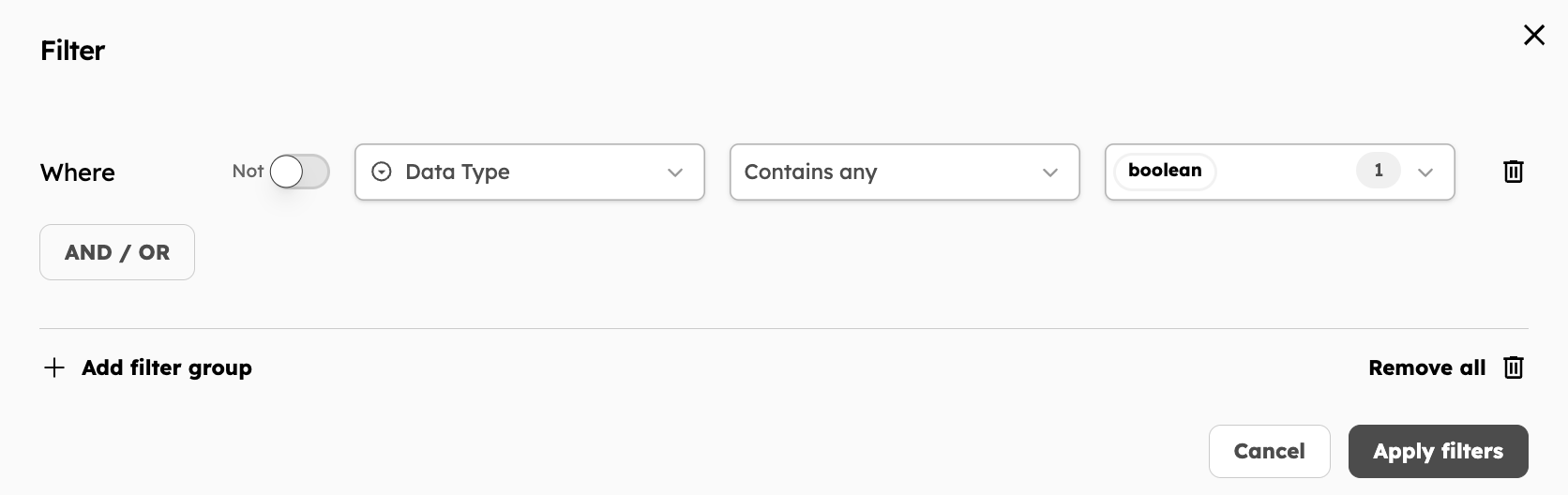
You can combine multiple filters when you need to narrow the list further.
Depending on what you are looking for, filters can be combined using AND or OR conditions.
For example, you might filter the table to find:
- attributes with a particular name
- attributes using a particular data type
- attributes that are Live
- attributes that are Public
- attributes with a particular number of associated values
Choosing which columns to display
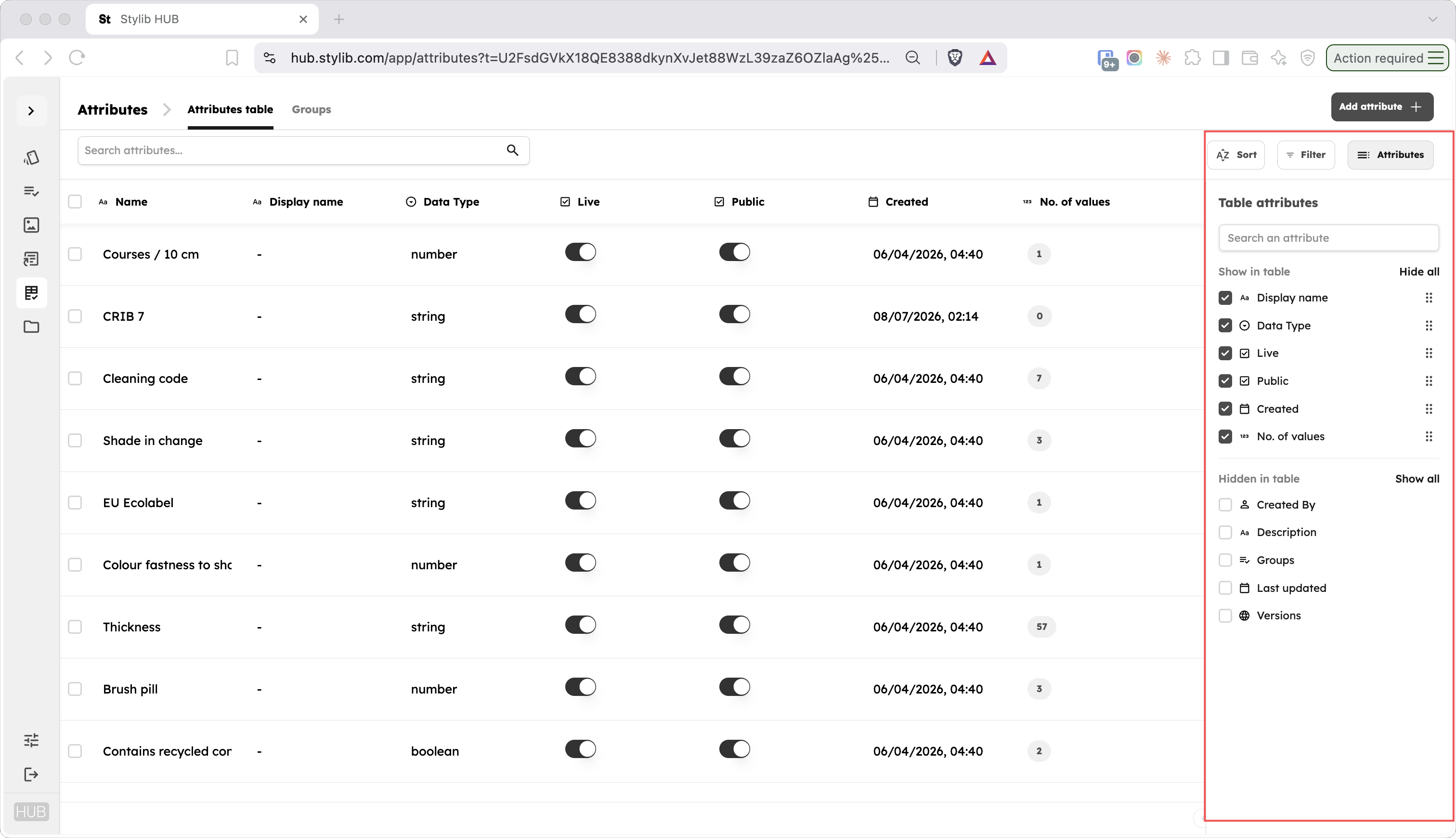
Use Attributes to control which columns are visible in the table.
This allows you to customise the view around the information that is most useful for your current task.
Available information can include:
- Name
- Display name
- Description
- Data type
- Public
- Live
- Number of values
Changing the visible columns only changes the table view. It does not change the attributes themselves.
Opening an attribute
Click an attribute to open its individual attribute page.