Creating attributes
You can create new attributes when you need to introduce a new type of information to your catalogue.
Before creating an attribute, consider what information it will contain and choose the appropriate data type. The data type determines what kind of values the attribute can store and how those values can be filtered and managed in Hub.
For more information about the available data types, see [Attributes overview].
Create a new attribute
From the Attributes page, click Add attribute.
Enter the name of the new attribute and select its data type.
Hub supports:
- Text / String
- Integer
- Float
- Date
- Boolean
- Multiple choice
- Single choice
- URL
The attribute name should clearly describe the information that will be stored in it.
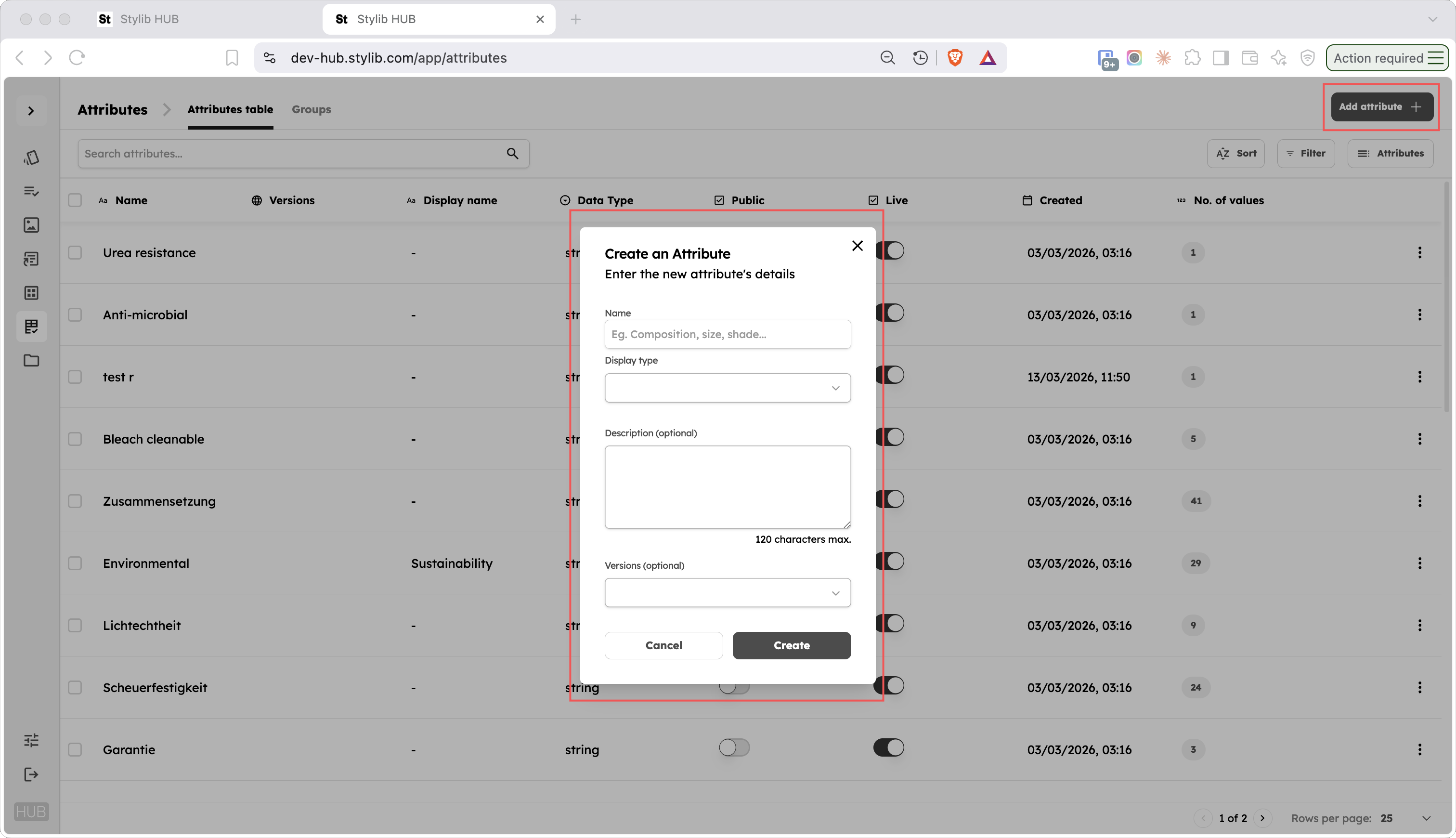
Once you have entered the required information, create the attribute.
Hub will take you directly to the new attribute page, where you can complete its configuration.
Configure the attribute
After creating the attribute, use the Attribute information section to configure how it should be presented and used.
You can:
- add a Display name
- add a Description
- set the attribute as Live or not Live
- set the attribute as Public or not Public
Add values
Once the attribute has been configured, open the Values section if you need to create values for it.
You can add values in two ways:
- Add value - create an individual value
- Bulk upload - add multiple values at the same time
For attributes with a predefined set of permitted values, such as Single choice or Multiple choice attributes, adding and maintaining a consistent set of values is particularly important.
Values can also contain additional information such as Display name, Standard and Tolerance where relevant.
For full instructions, see [Managing attribute values].
Before using the new attribute
Once the attribute has been configured and any required values have been added, it is ready to be used across the catalogue.
Before you begin assigning it to products or variants, check that:
- the correct data type has been selected
- the Display name and Description are appropriate
- Live is configured correctly
- Public is configured correctly
- any required values have been added and standardised
This helps ensure that the new attribute is used consistently from the start.