Managing attributes
Each attribute has its own page where you can review and manage its configuration.
From the Attributes table, click an attribute to open its individual attribute page.
Each attribute page is divided into two main sections:
- Attribute information - contains the main settings that define how the attribute is configured and used in Hub
- Values - contains all values currently associated with the attribute
This section covers Attribute information. Managing attribute values is covered separately in [Managing attribute values].
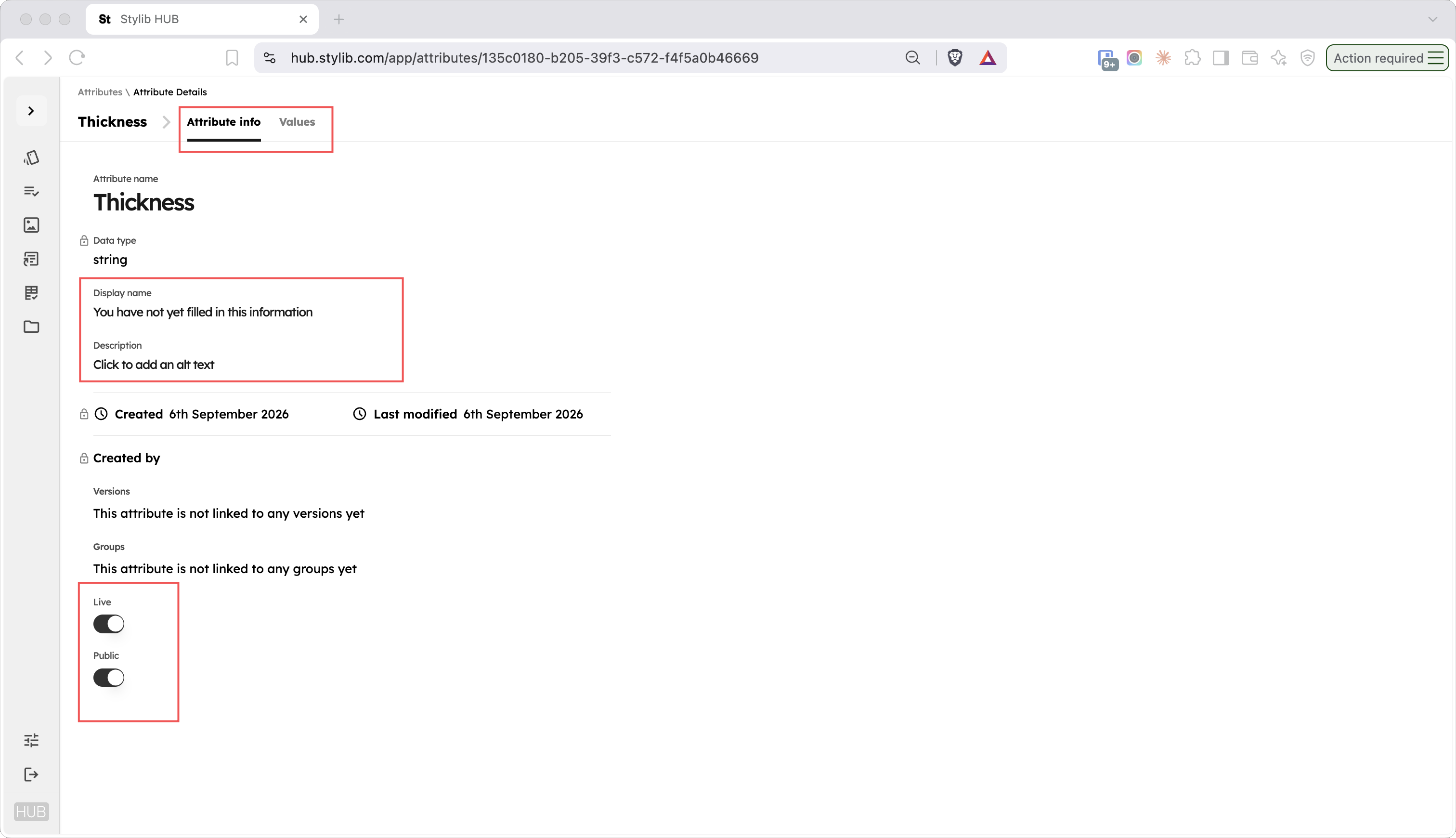
Attribute information
The Attribute information section contains the main settings that control how the attribute is structured, presented and used.
These include:
- Name
- Display name
- Description
- Data type
- Live status
- Public status
Display name
The Display name allows you to give the attribute a different user-facing name without changing its underlying attribute name.
This is useful when the internal name used for managing your data is different from the wording you want to use externally.
For example, an internally named attribute could have a clearer or more marketing-friendly display name for use in customer-facing outputs.
Description
Use the Description field to add context about what the attribute represents or how it should be used.
Descriptions can be useful for attributes that may otherwise be ambiguous or where users need guidance about the expected information.
Data type
The Data type determines what kind of information the attribute can contain.
For example, an attribute may contain text, whole numbers, decimal values, dates, Boolean values, predefined choices or URLs.
The data type also determines how that attribute can be filtered and managed elsewhere in Hub.
For more information, see [Attributes overview].
Live
The Live setting controls whether the attribute is available for active use across the catalogue.
When an attribute is Live, it can appear in the relevant parts of Hub and can be selected when editing product or variant information.
Turning Live off keeps the attribute in Hub but removes it from normal active use.
Public
The Public setting controls whether the attribute is available for external outputs.
When an attribute is Public, its information can be included in outputs such as:
- Product PDFs
- Data exports
Turning Public off allows the attribute to remain available for internal use without exposing it in these outputs.
Editing attribute information
Update the relevant fields or settings directly within the Attribute information section.
Changes to Display name, Description, Live or Public affect how the attribute is presented or made available without changing the values already associated with it.
To review or manage the values associated with the attribute, open the Values section.