Managing attribute values
Each attribute has a Values section where you can review and manage all values currently associated with that attribute.
From an individual attribute page, select Values to open the values table.
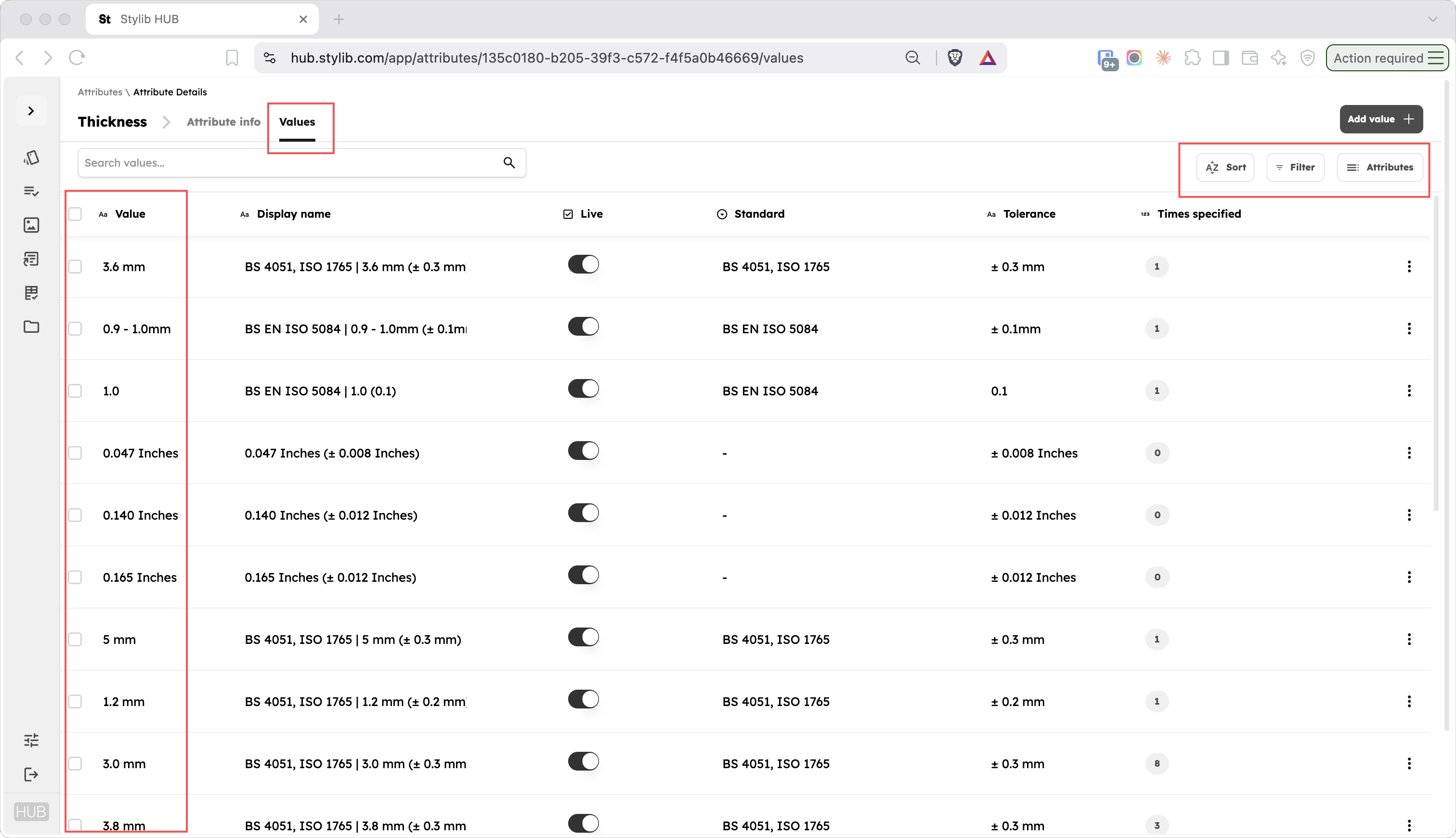
The values table
Each row in the table represents a value associated with the attribute.
The table can display additional information about each value. The available columns may vary depending on the attribute and how it is configured.
As with other tables in Hub, you can:
- Sort values to change the order in which they appear
- Filter the table to show only values matching particular conditions
- Use Attributes to choose which columns are displayed
- Search for a particular value using the search field
This makes it easier to review large sets of values and focus on the information relevant to the task you are working on.
Key columns
Display name
The Display name column shows the alternative name used when presenting a value externally.
This allows you to keep a consistent underlying value for managing your catalogue while using different wording for customer-facing purposes.
For example, a technical or abbreviated value used internally could have a clearer or more marketing-friendly Display name.
Display names can therefore be updated without changing the underlying value used throughout the catalogue.
Times specified
The Times specified column shows how many times a value is currently used across the catalogue.
For example, if a value has Times specified: 8, that value currently appears eight times in the catalogue.
This can be particularly useful when reviewing data quality. It helps you understand how widely a value is used before editing or consolidating it, and can help identify values that may have been created accidentally or are only used in a small number of places.
Standard
The Standard column records the technical or testing standard associated with a value.
For example, a thickness value may be measured or specified according to standards such as BS 4051 or ISO 1765.
Recording the standard alongside the value provides important technical context and helps ensure that specifications are interpreted consistently.
Not every value needs to have a Standard. It is used where a particular standard is relevant to the information being specified.
Tolerance
The Tolerance column records the permitted variation associated with a value.
For example, a thickness of 5 mm might have a tolerance of ± 0.3 mm.
Tolerance is particularly useful for measurements and other technical specifications where the stated value may allow an accepted degree of variation.
As with Standard, a tolerance only needs to be specified where it is relevant to the value.
Reviewing values
Reviewing values centrally makes it easier to understand how an attribute is currently being used across the catalogue.
It can also help you identify:
- duplicated values
- inconsistent spelling
- inconsistent formatting
- values that should be standardised
- values that need a clearer Display name
Sorting, filtering and reviewing Times specified can be particularly useful when working with attributes that contain a large number of values.
Editing a value
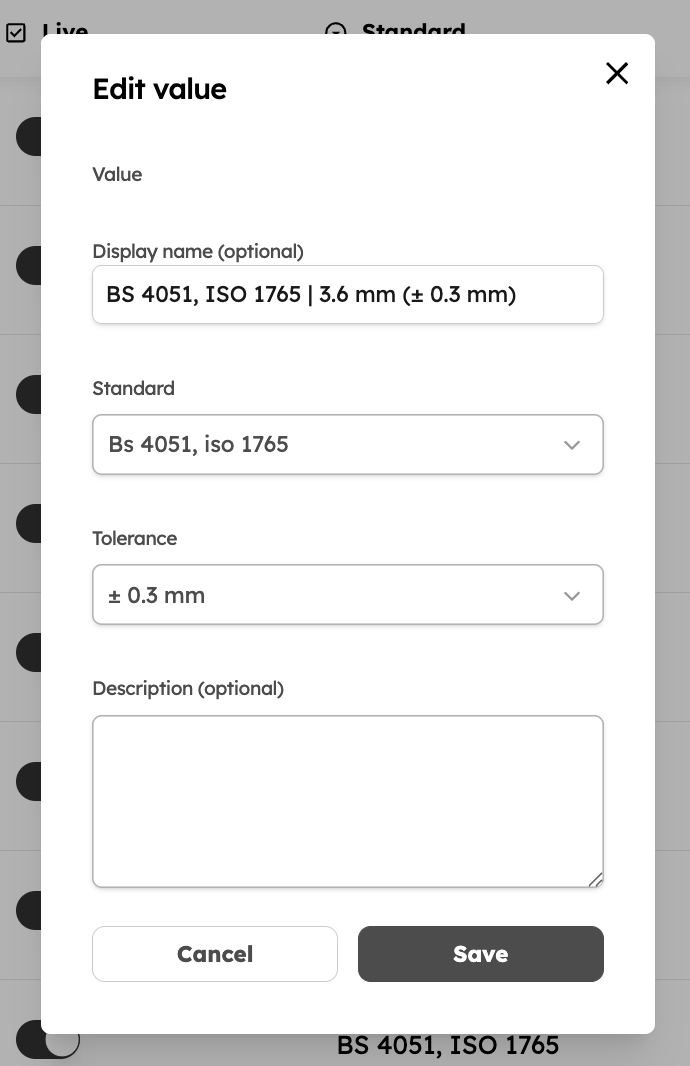
To update an existing value, open the relevant value and edit its available information.
You can, for example, update its Display name without changing the underlying value itself.
This is useful when the catalogue data is already correct but the wording used externally needs to be adjusted.
Adding a value
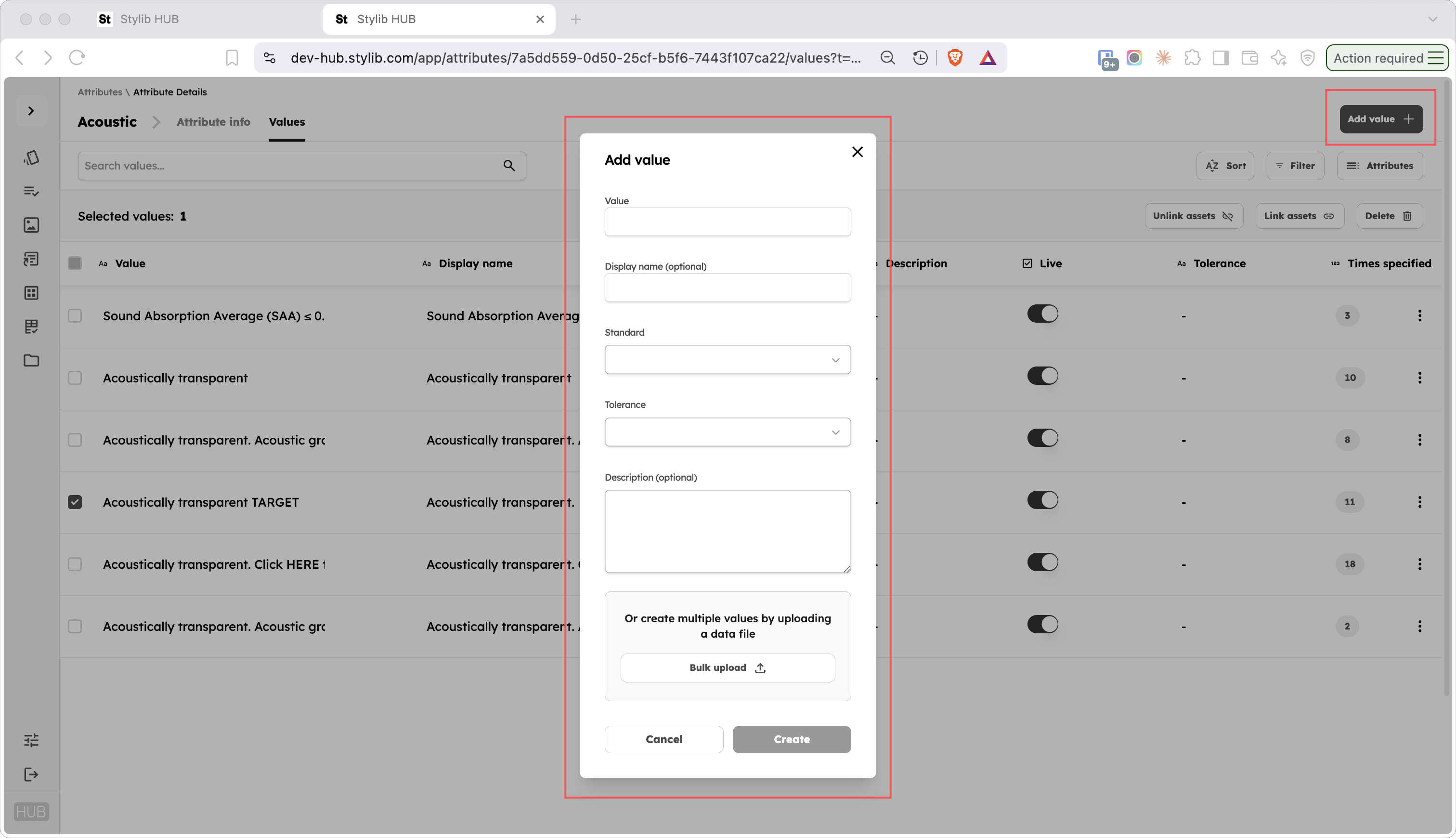
To create a new value, click Add value.
Enter the new value and any additional information required, then save it.
Once created, the value becomes available for use with that attribute across the catalogue.
Adding multiple values
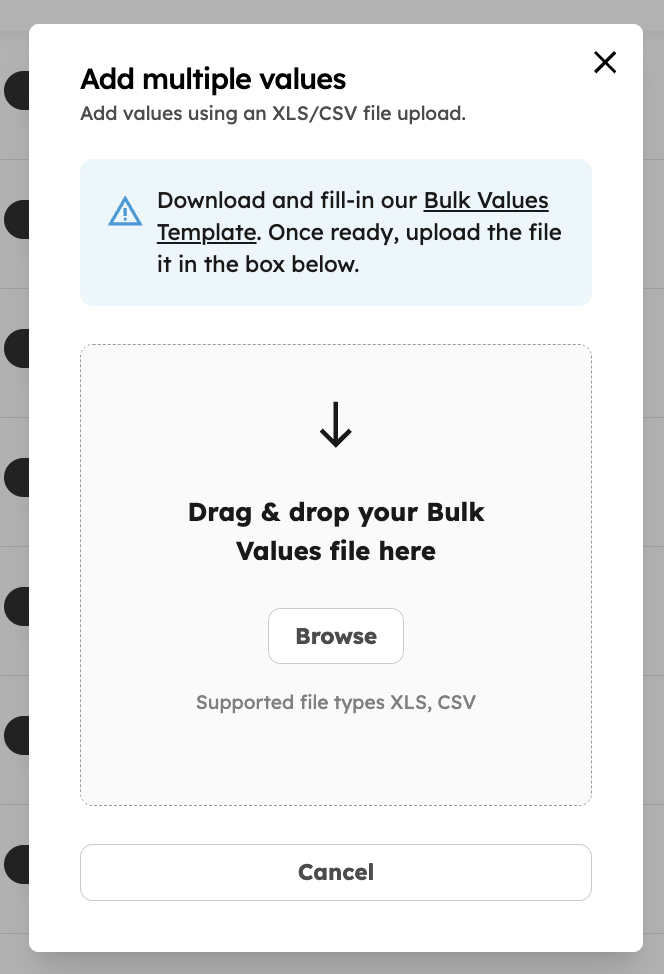
If you need to add many values at once, use Bulk upload.
Bulk upload is useful when an attribute has a predefined set of values or when several new values need to be introduced at the same time.
Merging values
If multiple values represent the same information, you can merge them into a single standard value.
This is useful for cleaning up duplicated or inconsistent catalogue data. Instead of updating every product or variant individually, Hub consolidates the selected values into one master value.
1. Select values
Use the checkboxes in the Values table to select the values you want to merge.
Once multiple values have been selected, click Merge values.
2. Choose the master value
Hub will show all of the values you selected.
Choose the master value you want the other values to be merged into.
The master value becomes the starting point for the consolidated value. You will have an opportunity to review and edit its information before completing the merge.
Click Next.
3. Review the merged value
Before completing the merge, Hub lets you review and edit the information that the resulting value will use.
This can include:
- Name
- Display name
- Standard
- Tolerance
- Description
Review these fields and make any changes required.
This is useful because the value you want to keep may not necessarily contain the best information from the selected values. The merge gives you an opportunity to define the final consolidated value before applying it across the catalogue.
4. Complete the merge
Once you are happy with the resulting value, click Finish.
The selected values are consolidated into the master value, so catalogue entries that previously used the merged values now use the resulting value instead.
This helps maintain a single, consistent representation of the same information throughout the catalogue.
Maintaining consistent values
The Values section is an important part of data governance in Hub.
Over time, the same information may be entered in slightly different ways. Reviewing all values for an attribute in one place makes it easier to identify these inconsistencies and decide which value should become the standard.
Where multiple values represent the same information, they can be merged into a single value.
[Learn more about merging attribute values]