Channels overview
What are channels?
A channel is a saved export setup. It combines a view, the attributes you want to include and a file format, and turns them into an XLS or CSV file you can share with distributors, retailers, internal teams or other platforms.
Because the setup is saved, you can export the same channel again at any time without rebuilding it. Each export is generated from your catalogue data at that moment, so the file always reflects your latest product information.
What a channel is made of
| Part | What it controls |
|---|---|
| Source view | Which items are exported. Any product view or variant view, static or dynamic. |
| Content | One row per product (product) or one row per variant (variant). This is set by the source view. |
| Attributes | Which columns appear in the file, in what order, and under which column headers. |
| Export format | XLS (.xlsx) or CSV. |
Product channels and variant channels
Channels can now be built from product views as well as variant views.
| Product channel | Variant channel | |
|---|---|---|
| One row per | Product | Variant (for example a colourway or finish) |
| Built from | A product view | A variant view |
| Typical attributes | Product image, name, description, no. of variants, product-level specifications | Swatch, variant name, colour names, ambients, AI tags, variant-level specifications |
| Good for | Range overviews, collection launches, product-level feeds | Colour and finish listings, distributor and retailer feeds |
The list of available attributes changes with the channel type. A variant channel offers variant-level attributes, such as swatches and ambient images, that a product channel does not.
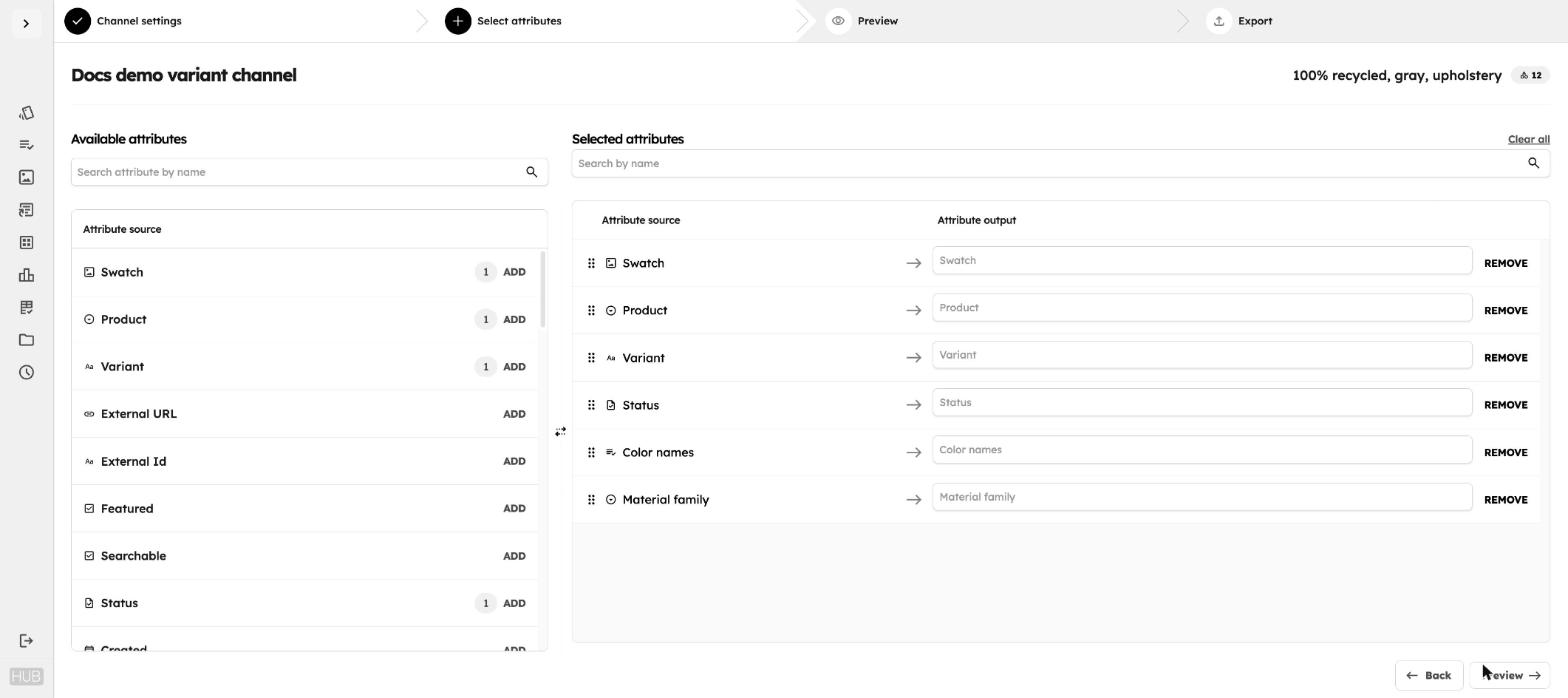
Tip: If an attribute has no values for the items in your view, its column shows as empty in the preview and is left out of the exported file.
Once a channel is created, its content type is fixed. To export the same items at a different level, create a new channel from a product or variant view.
Static and dynamic sources
A channel follows the behaviour of its source view:
- Dynamic view: items are selected by saved filters. Every export includes whatever currently matches those filters, so new or updated items are picked up automatically.
- Static view: items are picked manually. Every export includes the same items until you edit the view.
For more on views, see Product lists.
How channels are used
- Send structured product data to distributors, retailers and partners in the format they need.
- Keep a repeatable export for an ongoing feed, such as a dynamic view of all active upholstery.
- Rename columns to match a partner's template without changing your catalogue.
- Keep a record of every file you have exported, with the option to download it again.
Navigating the Channels page
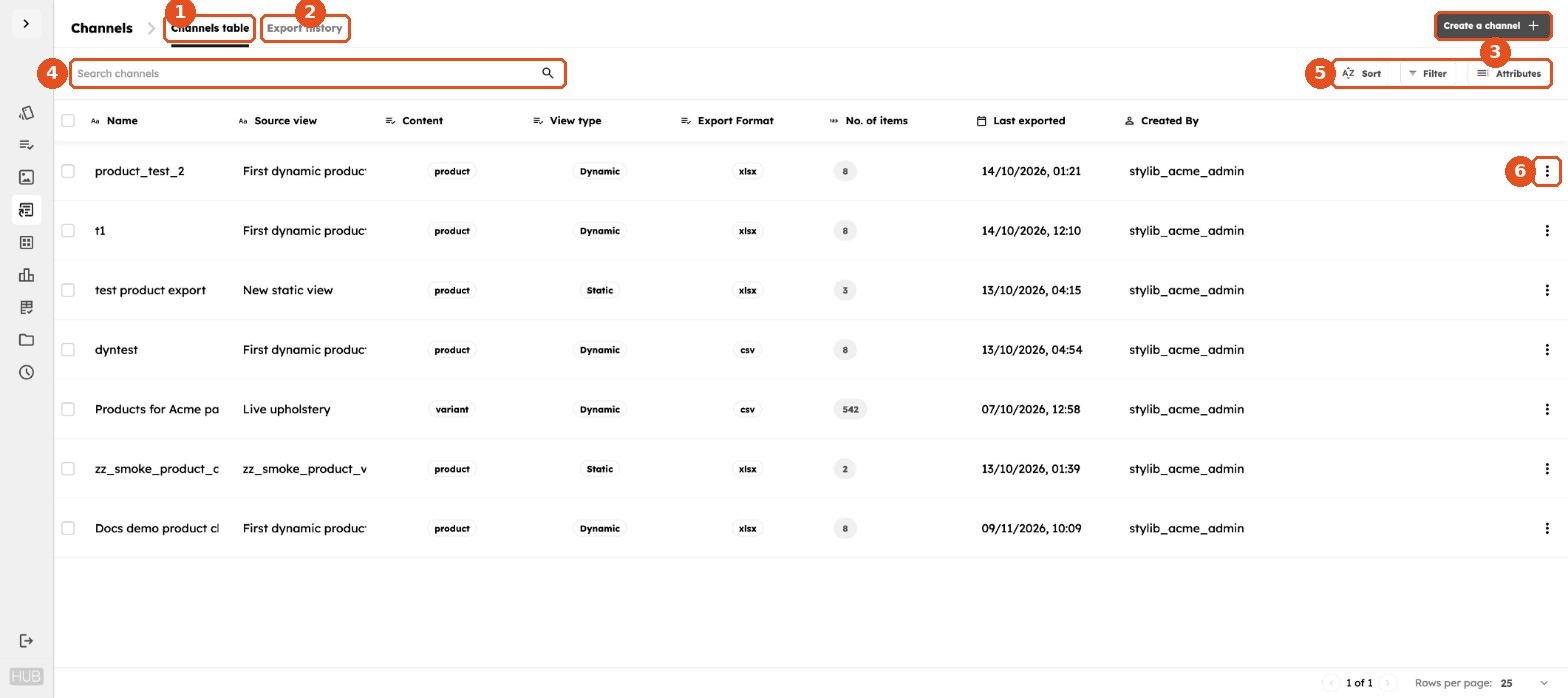
- Channels table: all your channels, with their source view, content type, view type, export format, number of items, last export date and owner.
- Export history: every file exported from any channel, ready to download again.
- Create a channel: starts the four-step channel setup. See Managing channels.
- Search: find a channel by name.
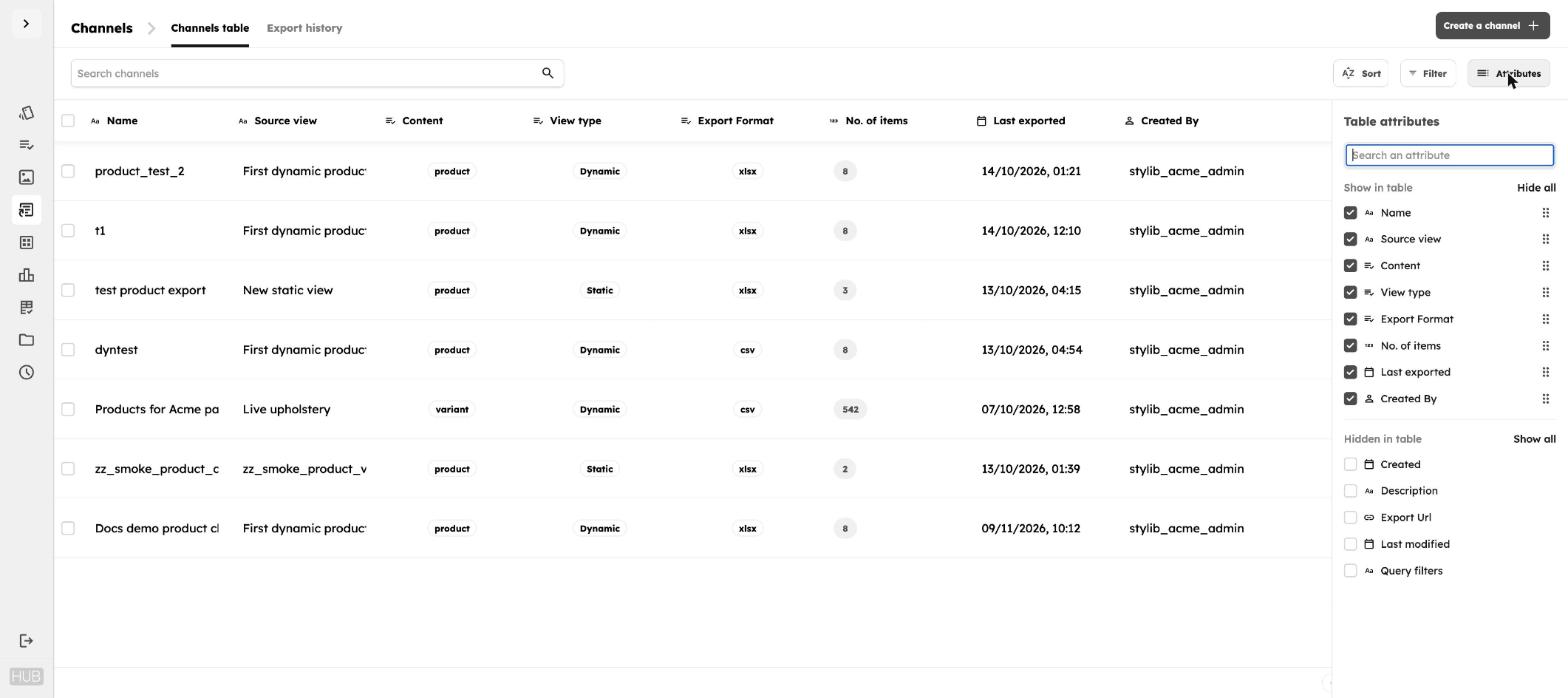
- Sort, Filter and Attributes: sort by one or more columns, filter by conditions such as export format or view type, and choose which columns the table shows.
- Actions menu (⋮): export, edit, duplicate, rename or delete a channel.
Select one or more channels using the checkboxes to duplicate or delete them in bulk.
Table columns
Shown by default: Name, Source view, Content, View type, Export Format, No. of items, Last exported and Created By.
Use Attributes to show extra columns:
- Export Url: a link to the channel's exported file. Hover over the cell to open the link or copy it, for example to share it with a partner.
- Query filters: the filters behind a dynamic source view.
- Created and Last modified: when the channel was set up and last changed.
A channel with a dash (-) under Last exported has been set up but not exported yet.
Export history
The Export history tab lists every exported file, with its channel, format, file size, export date and the user who exported it. Click the download icon to download any file again.
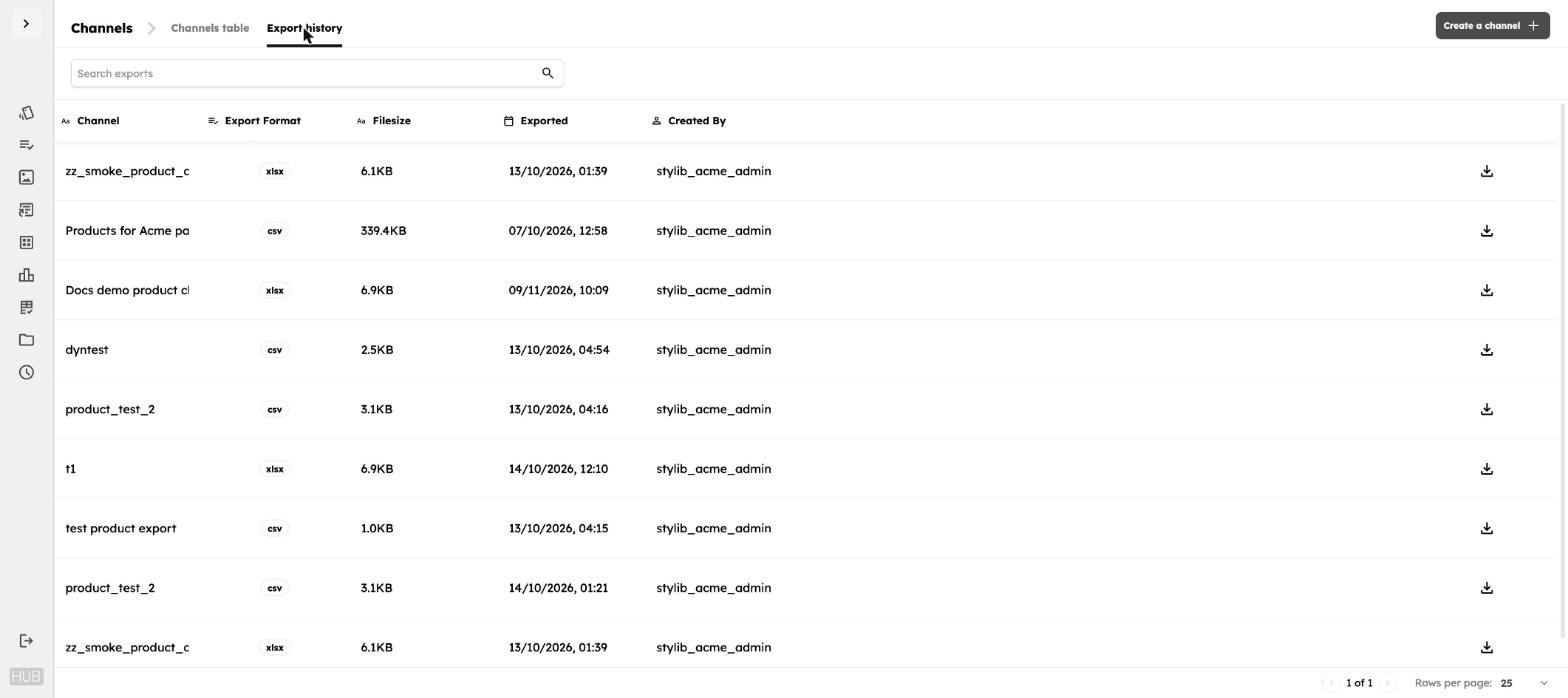
Past exports stay in Export history even after the channel that produced them is deleted.
Next: Managing channels